
If you’ve spent any time on this site, you know I love sharing videos. Nature clips, art process films, classic gems from my own childhood…
But lately I’ve been thinking more carefully about how those videos are watched once they leave my hands. A link on a blog post is one thing. What happens when a child is handed a tablet and left to follow the algorithm?
I thought I’d take a minute to share a few practical tools I’ve run across, low-tech rituals, and simple setups that make video watching feel more intentional and a lot less like a free-for-all.
Things like a binder kids can flip through independently, a YouTube configuration that only surfaces what you’ve already approved, and a few small habits that shift the whole experience.
The point is not to try to do all of these (and this isn’t about screen time guilt or creating a strict set of rules either). Pick one thing, see how it lands with your family, and go from there.
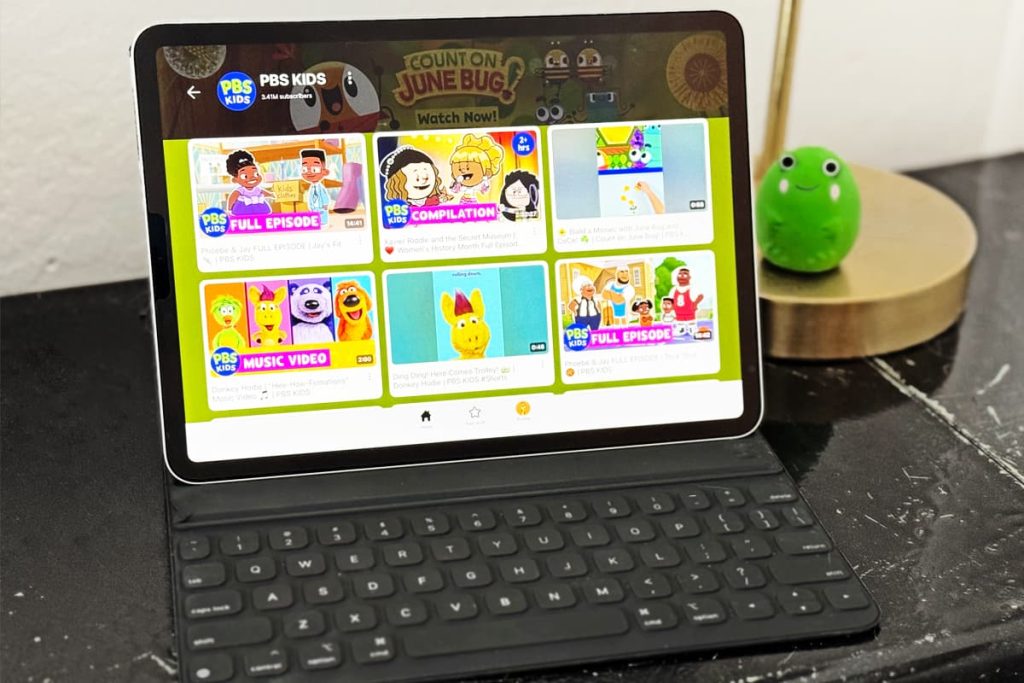
The YouTube Kids App has a setting that is so useful and often gets overlooked. It’s called Approved Content Only mode, and instead of trying to filter out the bad stuff, it flips the whole model: your child’s feed contains only what you’ve personally hand-picked. No algorithm nudging them toward the next video. No rabbit holes.
You’ll need the YouTube Kids app installed on your child’s device and a linked Google parent account. This one can’t be done from a browser – you’ll need the app.
To add more content later: Go to Settings → your child’s profile → tap Manage under Approved Content Only.
If you find a great video in the main YouTube app, you can send it directly to your child’s account. Tap the three dots next to the video → Share → select your child’s name. They’ll find it under Your Stuff → Shared in YouTube Kids.
Videos in their shared library in the YT Kids app will be ad-free.
Note: I tried this in a browser window on my desktop, and realized that, at the moment, this particular sharing feature is only available through the app (works on both mobile and tablet).
Pro tip: Turn off search while you’re in settings. With Approved Content Only active, turning off search means kids can’t wander toward unapproved content by typing in the search bar.
If the YouTube Kids setup doesn’t feel like the right fit for your family, this is worth looking at. A supervised account lives inside the regular YouTube app but gives parents meaningful oversight.
The video below walks through the full setup, explains how it differs from a standard account, and makes a pretty good case for why you might choose it as a stepping stone between ages.
A couple of months ago I stumbled across this idea on Bluesky that I haven’t been able to stop thinking about. This clever setup was a little tech heavy for me, so I simplified it.
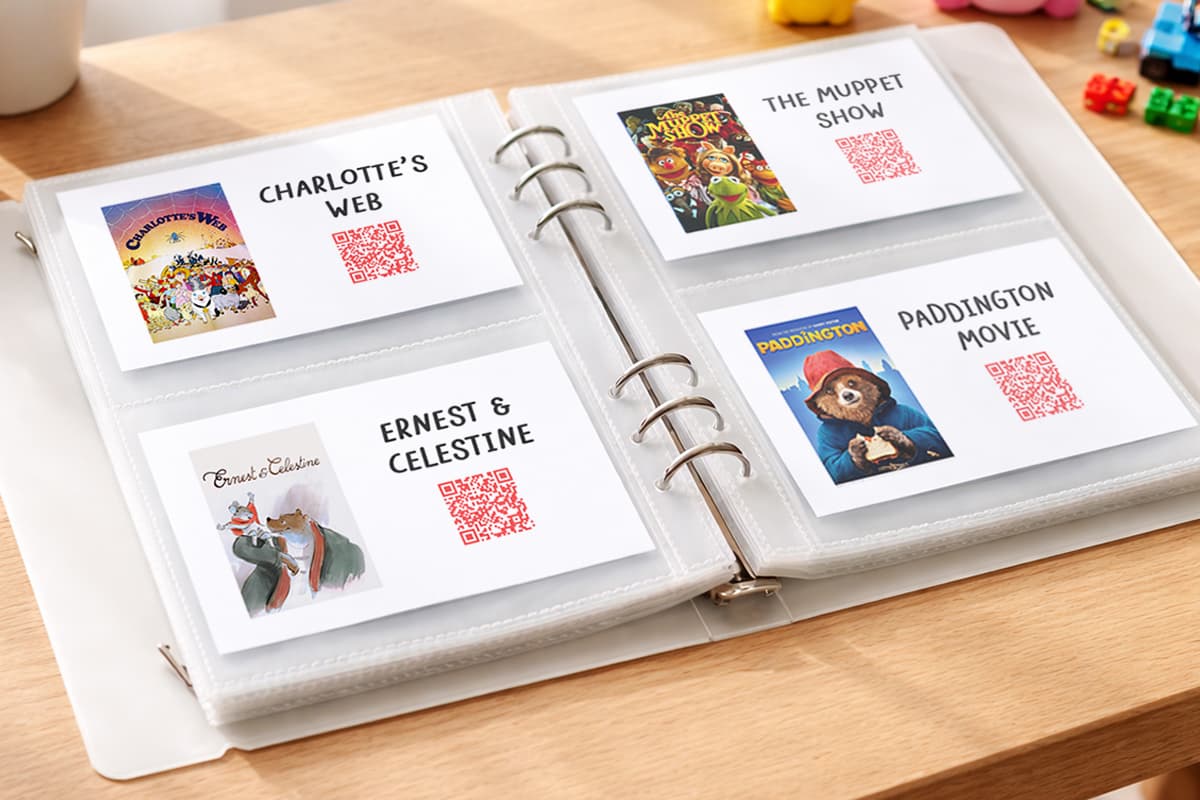
My own version is a small binder filled with cards, each one showing a movie or series cover image alongside a QR code that links directly to that title.
Scan it with a device, watch it, done.
Note: This is a bit different from the original example in that it will need to be scanned with a device (tablet or mobile phone) and can be watched from there, or cast to a connected TV.
What I love about this is the independence it gives kids. Older children can flip through on their own and choose something without needing a parent to unlock a device or navigate an app.
It also works beautifully for babysitters, grandparents, daycare staff, or anyone else who needs quick, foolproof access to the right video or playlist. No guessing, no accidental wrong turns.
| PROS | CONS |
|---|---|
| Works across any streaming service or video platform, so you’re not limited strictly to YouTube content. | Opens video in the default browser or app, bypassing platform safety features like YouTube Kids’ content filters. |
| Gives kids genuine, tactile independence so they can browse and choose without searching on a device. | QR codes link to live URLs, so if a title leaves a streaming service the card becomes a dead end. |
| A quarterly refresh keeps the collection curated and gives families a natural check-in on what’s approved. | Requires time to gather images, generate QR codes, design and print cards, and verify links continue to work. |
Note: We prefer to shop locally or use what we have at home, but this list contains Woodpeckers Crafts, Etsy, Blick Art Materials, Bookshop.org and/or Amazon affiliate links for reference. As affiliates (and Amazon Associates), we make a small commission on qualifying purchases.*
BASIC SUPPLIES:
OPTIONAL SUPPLIES:
Navigate to the show or playlist on your streaming service in a browser and copy the URL from the address bar. Most services (Netflix, Disney+, Max, Peacock, Apple TV+, PBS Kids) have stable, permanent URLs for each title.
Open your QR code tool of choice and paste in the show URL. Generate and download the file.
I found it handy to rename the QR codes so I could create them in batches. Use a consistent naming convention so codes they can be quickly matched to their covers (e.g. bluey-qr.png).
Search “[Show Name] official poster” in Google Images, or right-click → Save Image As directly from your streaming service’s browse page.
Aim for portrait-oriented images — they fit card pages better than landscape.
Our free google slides template makes card layout easy. Just drop in your cover images and QR codes, change the text to the movie title, and print on index cards.
Slip your finished index cards into the sleeves or punch the corners and slip them onto a binder ring, and you’re good to go!
If you want to get wildly organized, you can add divider tabs to organize by streaming service, mood (Calm / Funny / Educational), age range, or genre — whatever makes sense for your family.
Optional: add a “Now Showing” pocket at the front where kids slide in the card for their pick of the day. Let kids help choose a few new additions each time you refresh.
Plan for a quick refresh every quarter…few weeks…whatever makes sense for your family. Pull cards for anything that’s left your subscriptions, add newly approved picks, and archive old favorites in a “Back Pocket” section rather than tossing them (streaming libraries change so often, and titles usually return!).
Beyond settings and apps, some of the most effective strategies are the ones families build themselves. None of these require a subscription or a device — just a little setup and some buy-in from the whole household.
Once a month, put together a simple one-page “program guide” listing everything currently approved and available to watch, with short descriptions in your own words. Style it however you like — a folded half-sheet, a typed list, a quick Canva layout that looks like an actual TV guide. Add a “This Month’s Pick,” a rating system your family made up (stars, suns, acorns — whatever fits), or a mini review written by a sibling.
The magic isn’t the format, it’s the framing. A curated guide signals that video watching in your house is a chosen, considered thing. And updating it monthly gives you a natural moment to add new titles and quietly retire old ones — without it feeling like a negotiation.
Label popsicle sticks or poker chips with a time value — say, 30 minutes each. Kids start the week with a set number, spend them on screen time, and when they’re gone, they’re gone until next week. Extras can be earned through chores or good behavior.
This works especially well with younger kids because digital time limits are abstract — a number on a screen doesn’t feel like something running out. A physical token you hand over does. Make the jar itself part of the fun: a painted mason jar, a decorated shoebox, something a kid helped make. The more ownership they feel over the system, the less they fight it.
Some shows are just better as together things — not because kids aren’t allowed to watch them alone, but because your family decided they’re your Saturday morning show, your after-dinner series, your road trip movie. “That one’s ours” is a completely different message than “you can’t watch that by yourself.”
The ritual details matter too: a specific spot on the couch, a snack that only comes out for movie night, the same blanket every time. These small repeated things are what turn a passive activity into a memory. There’s also a practical upside — moments that deserve a conversation come up naturally rather than after the fact.
Give kids a place to make their case. A corkboard, a section of the family whiteboard, or a notepad on the fridge becomes the official spot where kids write or draw the shows they’d like added to the approved list. Once a week, a parent reviews requests, looks anything unfamiliar up on Common Sense Media, and posts a yes, a not yet, or a “let’s watch the first episode together and decide.”
It gives kids real agency within a structured system — which goes a long way toward reducing the “it’s not fair” energy around screen time rules. And for younger kids who have to write or sound out the title to add it to the board, it’s a bonus literacy activity.
Richard Wadsworth’s task checklist idea (which earned him a moment of TikTok fame) requires kids to complete a list of items before earning screen time: room cleaned, homework done, exercise checked off, chores finished.
It’s flexible enough to adapt for any household, and apparently works well enough that kids started waking up early on their own to get through it.
For families who want the chore-based system enforced digitally, these apps take the whiteboard off the fridge and put it on the device itself.
| App | Description | Best For… | Cost |
|---|---|---|---|
| Screen Time Chores | Kids complete parent-set tasks to unlock screen time on their device | Younger kids, straightforward chore-to-time setup | Free (iOS) |
| Privilege Points | Kids earn points for chores and redeem for any privilege parents define — screen time, sleepovers, cash | Multi-age households, flexible reward systems | Free / paid (iOS) |
| OurPact | Parent taps “Grant” to unlock device time after tasks are done; full schedule control | Families wanting device-level enforcement | Free–$10/mo (iOS & Android) |
A note on enforcement vs. trust: The AAP’s updated screen time guidance emphasizes building internal motivation over rule-following. These apps work best as scaffolding — helpful structure for younger kids that loosens as they demonstrate self-regulation — not as permanent surveillance systems.
The setups and tools in this guide are worth experimenting with – not because you need all of them, but because finding the right combination for your family makes a real difference.
A YouTube configuration that took twenty minutes to set up can save you months of second-guessing. A binder on the coffee table can quietly eliminate a dozen small negotiations. When the right pieces are in place, you can stop worrying quite so much, and that peace of mind is genuinely worth the extra effort.
Start anywhere, adjust as you go, and don’t be afraid to try something just to see if it sticks. I hope I’ve given you a few good ideas!
GETTING READY TO TRY this?
I love seeing all the ways people make these ideas their own! If you're sharing the results of one of our projects, mention or tag me with @barleyandbirch, or share it in the comments of one of our Pinterest project pins.